BuildDaily

Module Walkthrough

Project Files

Project files should not be a scavenger hunt through email, desktops, and shared drives. BuildDaily keeps drawings, specs, addenda, photos, quotes, signed backup, internal notes, external packages, and closeout material attached to the bid, job, lead, service ticket, document packet, or closeout record that needs it.

Workflow Breakdown

How the work moves

Job folders that know what kind of work they support

A project file manager has to separate internal backup from outside-facing package material. Drawings, specs, RFIs, submittals, T&M, change orders, daily reports, correspondence, closeout, and protected system folders all stay visible without giving every outside party the same access.

  • Keep internal and external package folders separate
  • Show protected workflow folders instead of loose shared-drive chaos
  • Use upload, dropzone, folder, view, download, rename, move, delete, and zip actions from the record
Project file manager controls
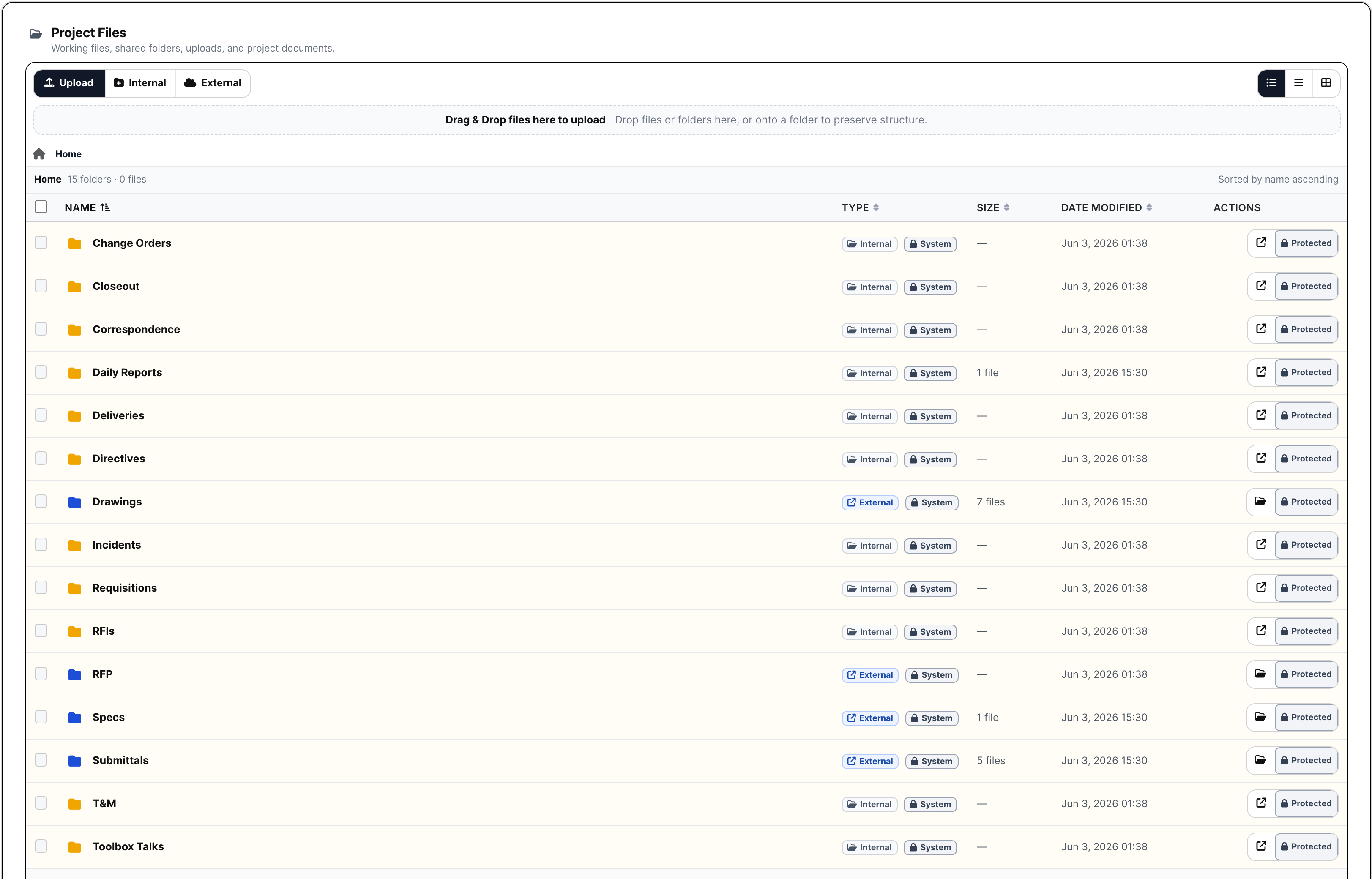
Project files show folder type, size, modified date, actions, protected folders, and external package flags.

Preconstruction files stay with the pursuit

Before a job exists, estimators still need bid invites, addenda, customer emails, site photos, plan sets, quotes, internal notes, and proposal backups in one place. Lead and estimate file managers keep that early material attached so the handoff into estimating and projects does not lose context.

  • Store bid invites, site photos, customer email, PDFs, drawings, specs, addenda, and quote backup
  • Split internal estimating work from external bidder packages
  • Carry file context forward when a lead becomes an estimate or an estimate becomes a project
Estimate file manager controls
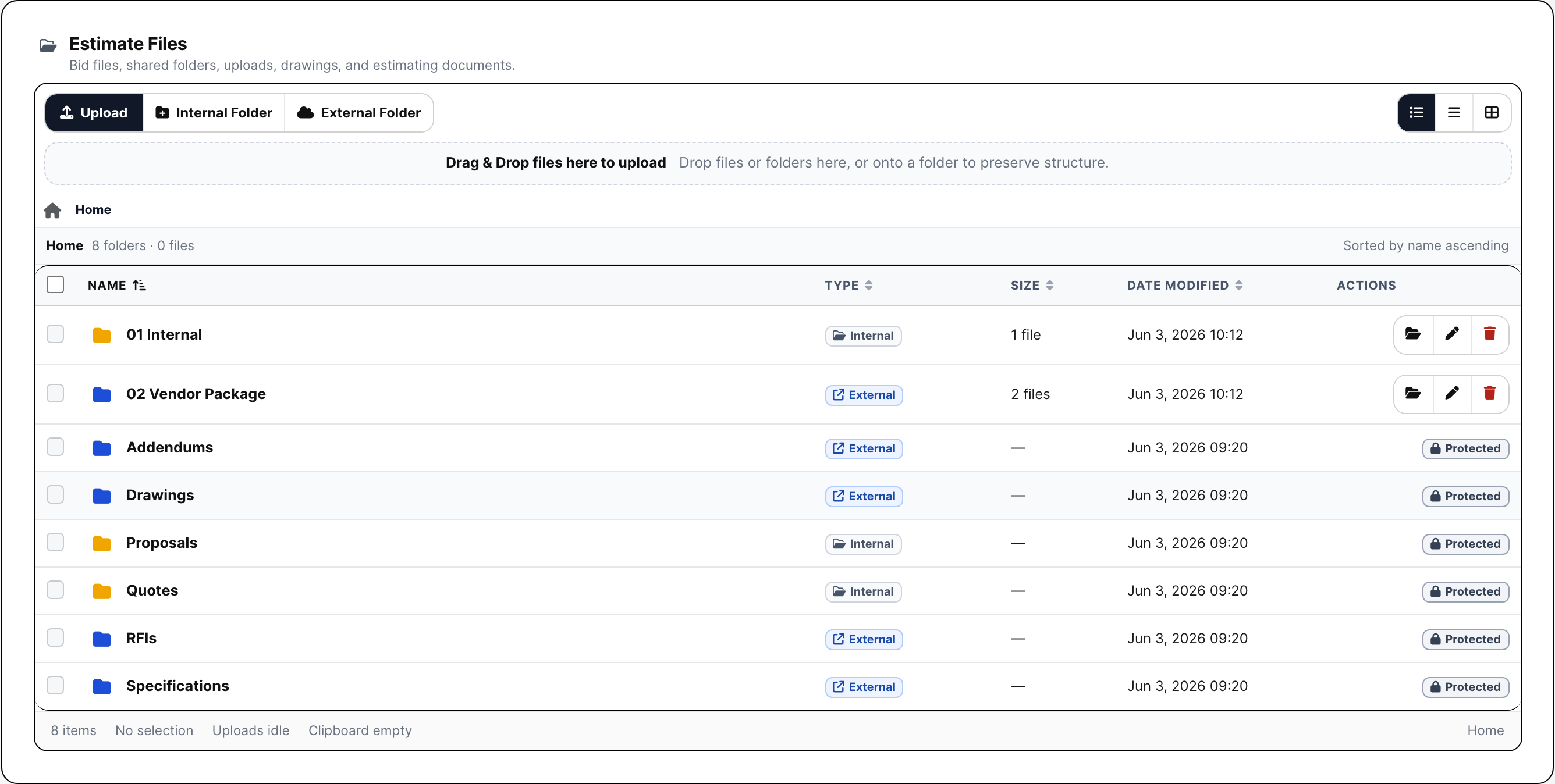
Estimate files show package folders, upload controls, internal/external labels, and protected bid folders.

Packages leave the office without rebuilding the folder

The same file records feed RFP planrooms, review portals, signing envelopes, closeout packages, warranty letters, and mobile or bd_sync companion capture. That means outside packages can be assembled from controlled job files instead of whatever happened to be attached to the last email.

  • Use project files in no-login RFP planrooms, review links, and signing packets
  • Generate closeout and warranty package material from job records
  • Keep mobile and companion-app uploads tied to the work they document
Closeout package file workflow
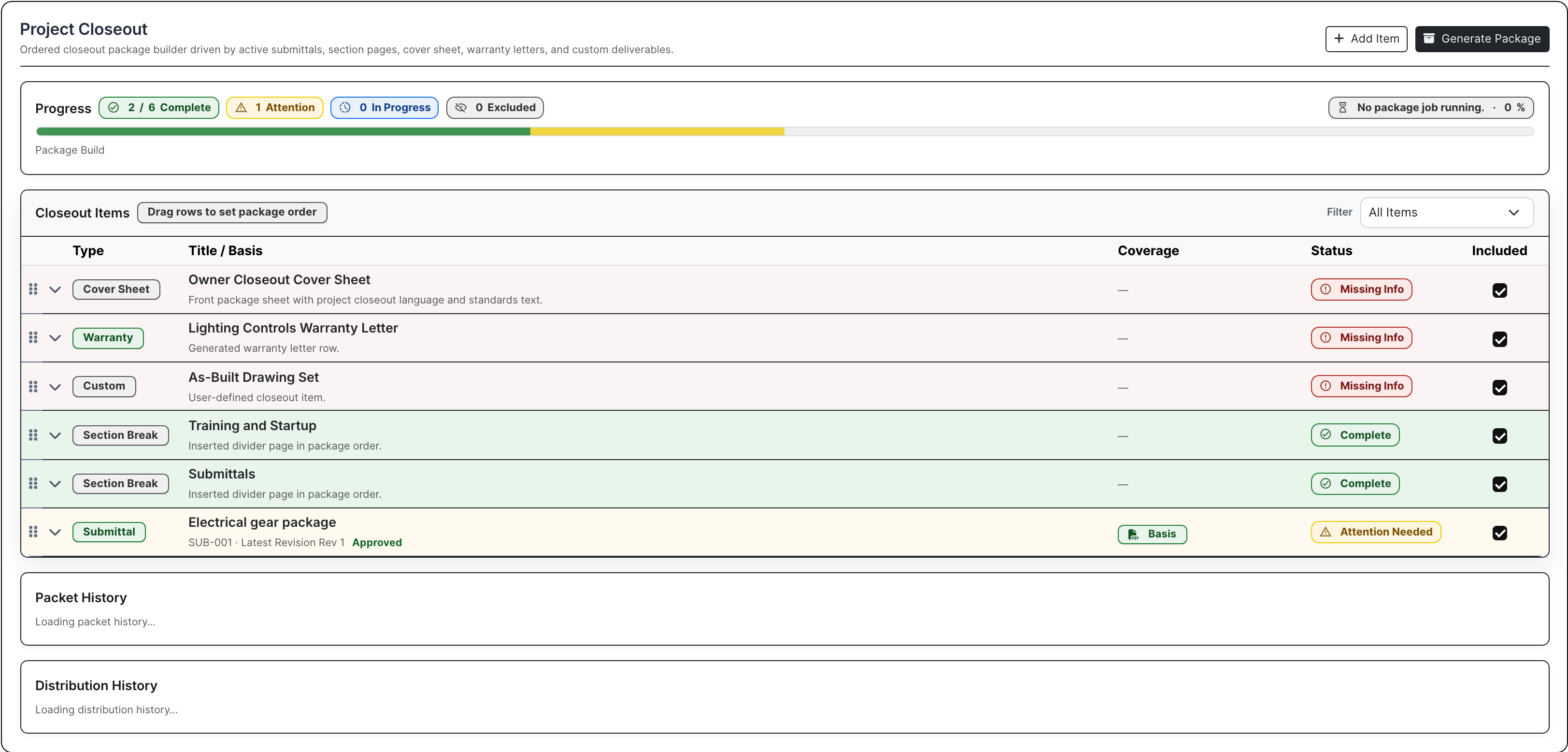
Closeout packages pull approved records, warranty rows, as-builts, section breaks, and generated package output together.

Product Proof

Screens tied to the workflow

Project file manager with protected workflow folders
Project files show the real job folder structure: drawings, specs, RFIs, submittals, T&M, change orders, closeout, daily reports, protected system folders, and internal vs external package control.
Estimate file manager with bid folders
Estimate files separate internal bid work from external bidder packages, with drawings, specs, addenda, proposals, quotes, RFIs, upload controls, folder actions, and protected package folders.
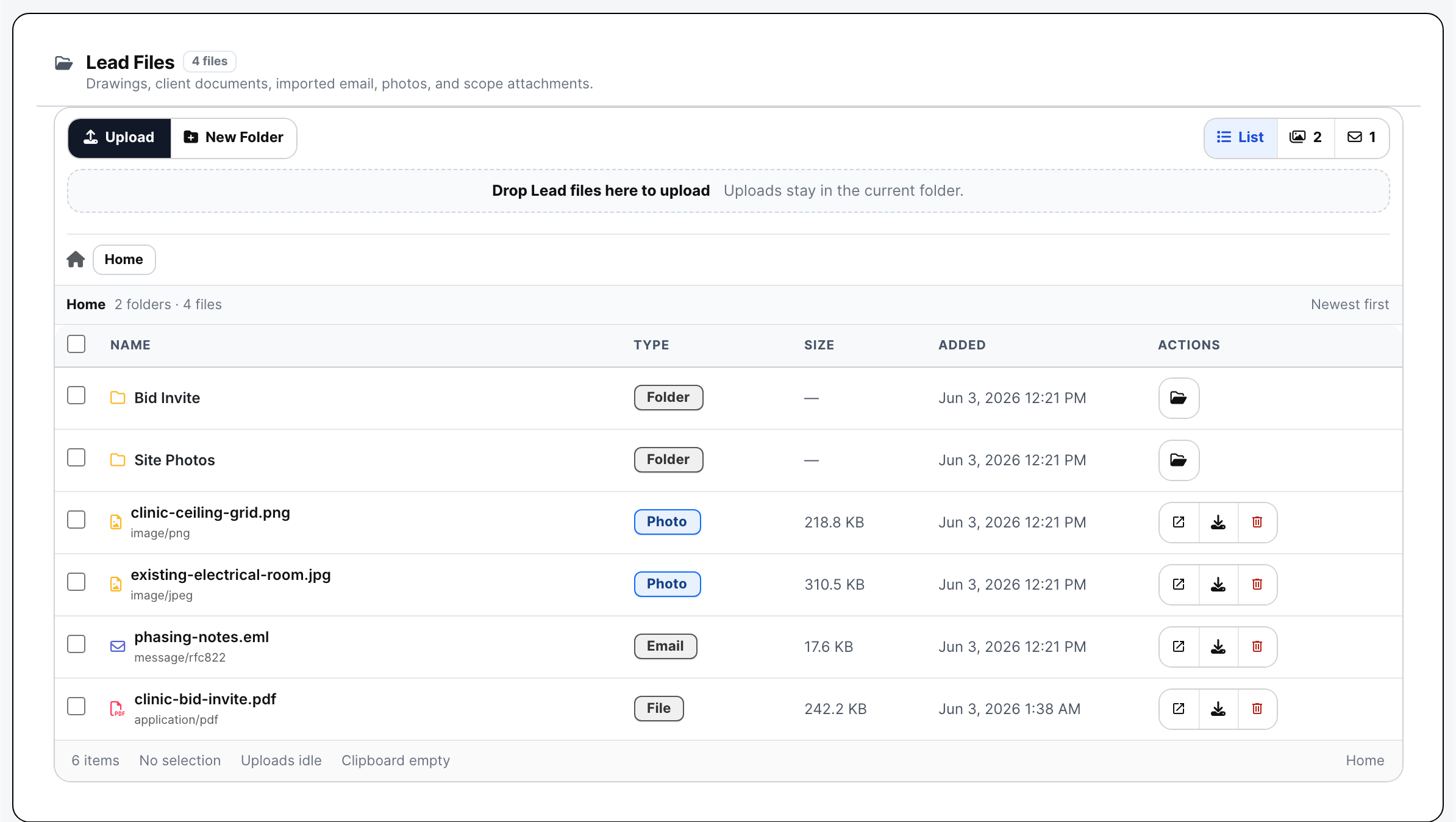
Lead file manager with pursuit material
Lead files keep early pursuit material - site photos, imported email, bid invites, PDFs, and folders - attached before the opportunity becomes a formal estimate.
Project closeout package builder
Closeout uses the files and generated documents already collected on the job so warranty letters, O&M manuals, as-builts, and turnover packages do not start from scratch.

Module Surfaces

Where the work happens

Overview

Summary Project facts, status, team signals, notes, activity, and the current state of the job.

Documents

Files Project folders, uploads, downloads, previews, rename, move, delete, bulk copy, bulk move, and zip.
Drawings Drawing logs, uploaded sets, sheet review, assignment, verification, history, set downloads, and source PDF access.
Specifications Spec sets, divisions, sections, search, quick navigation, downloads, and version history.
Directives Owner or design-team direction tracked against the project record.
Correspondence Project communications kept with the job instead of buried in inboxes.

Management

RFIs Question, attachments, distribution, response, PDF packet, close, reopen, resend, and public review.
Submittals Vendor, revisions, files, compiled packet, review decisions, distribution, release, and import workflows.
RFPs Project-scoped requests, recipients, planroom links, quote tracking, follow-up, and addendum notifications.
Meetings Meeting records connected to the project.
Permits Permit tracking, inline create/edit, detail records, and draft completion.
Inspections Inspection records tied to permits, field status, and closeout needs.

Field

Daily Reports Daily job record with subcontractor rows, files, autosave, Friday cleanup, finalization, and PDF.
Lookahead Near-term work pulled from schedule windows and field planning.
Safety Safety incidents and field safety records.
Deliveries Delivery tracking for material and project logistics.
Toolbox Talks Talk records and field documentation.
Punchlist Open punch items and closeout corrections.
Manpower Project manpower panel connected to labor planning.

Financials

Change Orders Scope, pricing buckets, files, workflow decisions, packet generation, distribution, and public review.
T&M Tickets Labor, materials, files, signatures, pricing, packet status, and revalidation.
Pay Applications Owner pay application workbench and project billing continuity.
A/R Receivable context and project payment visibility.
Receive Payment Project payment entry from the work page.
Subcontractors Subs, compliance, SOVs, pay requests, billing mode, certificates, and uploads.

Schedule

Schedule Tasks, dependencies, responsible parties, baseline lock, CPM recompute, Gantt data, PDF export, and schedule health.
Lookahead Short-window field planning from the schedule.

Closeout

Closeout Docs Closeout document collection and completion tracking.

Operating Rhythm

How the workflow stays moving

Where it lives

  • This module is part of the project work page, so records stay tied to the job, customer, team, files, schedule, and financial context.
  • The project navigation is the customer clue: users do not hunt for this work in a separate app. They open the project and choose the correct tab.

What a contractor can do

  • Create and rename folders
  • Upload whole files and chunked files
  • Download and preview
  • Rename, move, delete, and star
  • Bulk delete, move, copy, and zip
  • Track zip status
  • Use personal My Files and project file managers

Walk through Project Files

We can walk through the module around the way your company actually handles the work.

Request access